Your tuner sends back a map and says it's better. Or you saved a copy before a dyno day, and now there's a second file with a newer date. What actually changed?
One fuel table has hundreds of cells, and a map has many tables. Flicking through two files in your tuning software and trying to remember the numbers doesn't work. A comparison does that part for you.
Our free map compare tool takes two maps and lists every table, cell and setting that differs. It runs in your browser, so it works on a Mac or a phone as well as on Windows.
When comparing two maps is worth it
After a dyno session. Save the map before you start and again when you finish. The comparison shows which tables were touched and by how much.
When a map comes back from your tuner. Compare it with the one you sent. You see each edit, table by table, instead of taking it on trust.
Against a base map. Maps usually start life as someone's base map. Comparing yours with the original shows everything that has been changed since.
Between two saves. If you have several saves of the same map and something started behaving differently, compare saves one after another until you find the one where a value moved.
How to compare two maps
- Open map compare.
- Drop the older map into slot A. That's the "before" map, or the one you started from.
- Drop the newer map into slot B. You can also drop both files at once.
- Both files are checked and read, which takes a few seconds, and then the comparison appears below.
Dropped them the wrong way round? There's a Swap button.
What the result shows
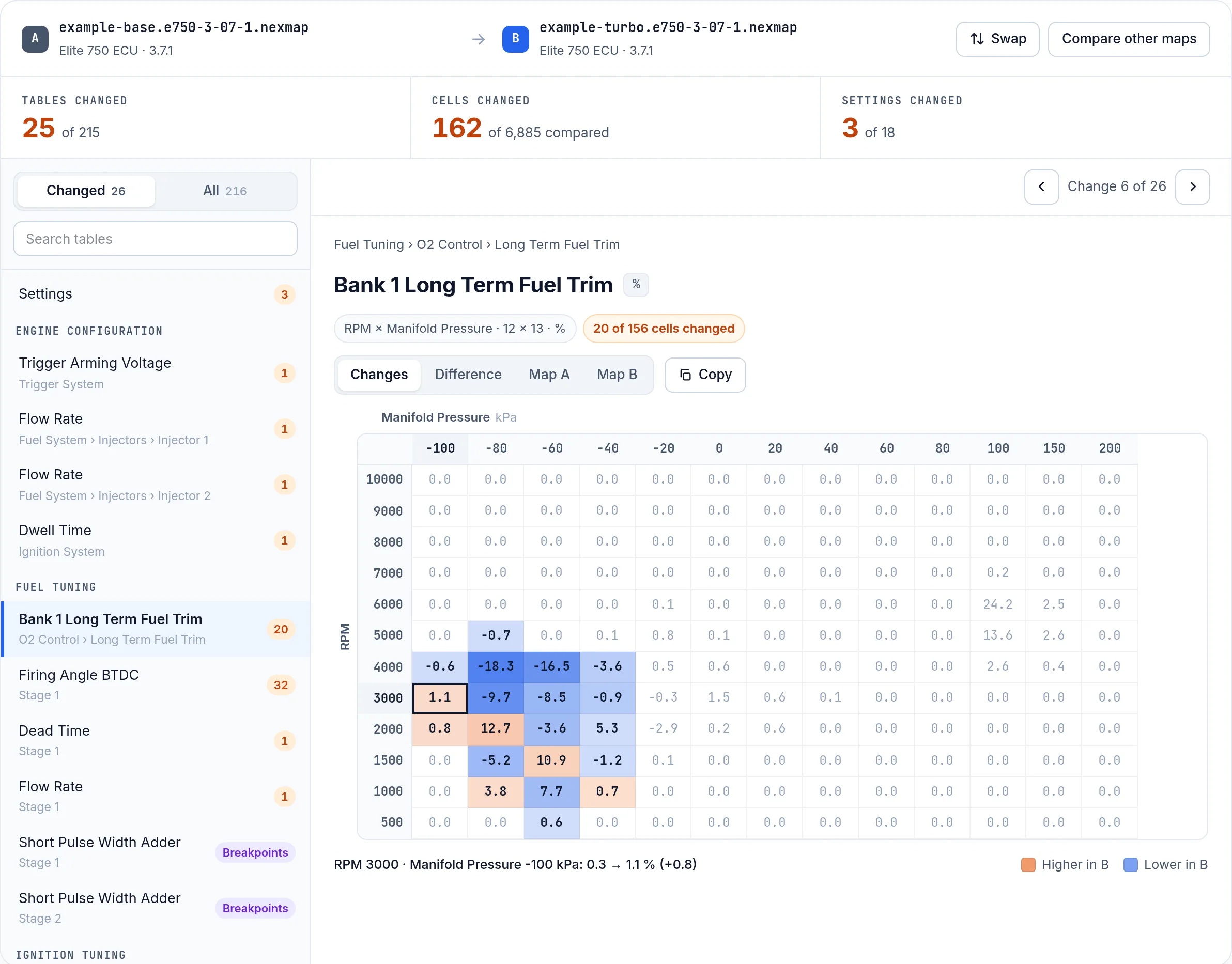
The bar at the top gives the totals: tables changed, cells changed and settings changed. The tables that differ are listed first, each with the number of cells that changed. Open one and the cells that went up in map B are orange, and the cells that went down are blue.
Color is never the only signal. Point at a cell and you get map A's value, map B's value and the difference, along with the RPM and load point it belongs to. The Difference view prints every change as a plus or minus number. The Map A and Map B views show either complete table on its own, and the next and previous buttons step from one change to the next.
Where a map has a settings summary, the settings that differ are listed side by side in their own section. A table, or just its changes, can be copied into Excel or Google Sheets.
A real example
The tool has two examples built in, so you can try it without any files of your own.
The first is a pair of public maps for a Haltech Elite 750 on firmware 3.7.1: a Classic Mini base map and a turbo map. Of 215 tables, 25 differ. Of the 6,885 cells compared, 162 changed, and 3 of the 18 settings are different.
The second is MaxxECU's own VW Golf MK4 V6 base map against its V6 Turbo map with Deka 630cc injectors, both on RACE firmware 1.157. Of 51 tables, 20 differ, and 304 of the 1,719 cells compared changed.
Added rows don't break the comparison
This matters more than it sounds. Say a tuner adds an RPM row to a table. Every row below it moves down one place, and a tool that lines cells up by position would report the whole table as changed.
This one matches cells by their breakpoint values instead. Only the new row shows up as new, and every other cell is still compared with the same point in the other map. If a table was rebuilt on completely different axes, both versions are shown one above the other rather than forcing a match.
Values are compared the way the software displays them, so a cell that reads 45.2 in both maps is never flagged.
Which maps can be compared
Both maps need to come from the same brand: Haltech Nexus or Elite maps saved with NSP (.nexmap), or MaxxECU maps saved with MTune (.MaxxECU-save). A Haltech map and a MaxxECU map can't be compared, because the two brands store completely different tables.
The firmware doesn't have to match. Tables are matched by the ID the software gives them, and a table that only one version has is listed as only in A or only in B.
Older Haltech ESP maps, Platinum maps and LinkECU maps open in the free map viewer, but they can't be compared yet.
One limit to keep in mind: the comparison covers the tables and settings the viewer can show. If it reports that nothing differs, that applies to what it shows. It isn't a byte for byte check of the file.
Why locked maps can't be compared
Comparing a locked map with another map would reveal the values the lock is there to hide, so locked maps are left out. Drop one and you get the same preview the viewer shows, with part of the real values visible and the option to unlock the file. You only pay if the unlock works. The unlock page has the details.
Are my maps saved?
No. Each file is only used to build its view and isn't kept, and the comparison itself runs in your browser.
If you only need to look at one map, read our guide on opening an ECU map file without the tuning software. If you have two maps ready, open map compare and drop them in.